

NFC Tags for ADHD: A Setup Guide for iPhone and Android
NFC tags: the cheap, quiet accommodation your ADHD brain didn't know it needed.

It’s Monday morning. You’re by the front door, keys in one hand, phone in the other. You know you’re forgetting something. You’re always forgetting something. Lunch? Wallet? Meds? You can’t remember, and you’re already running late.
But what if there was a sticker on the wall right next to your door that, when you tapped your phone against it, pulled up your leaving-the-house checklist? No searching for an app. No trying to remember. One tap, and everything you need to check is right there on your screen.
What If Starting Was as Easy as a Tap?
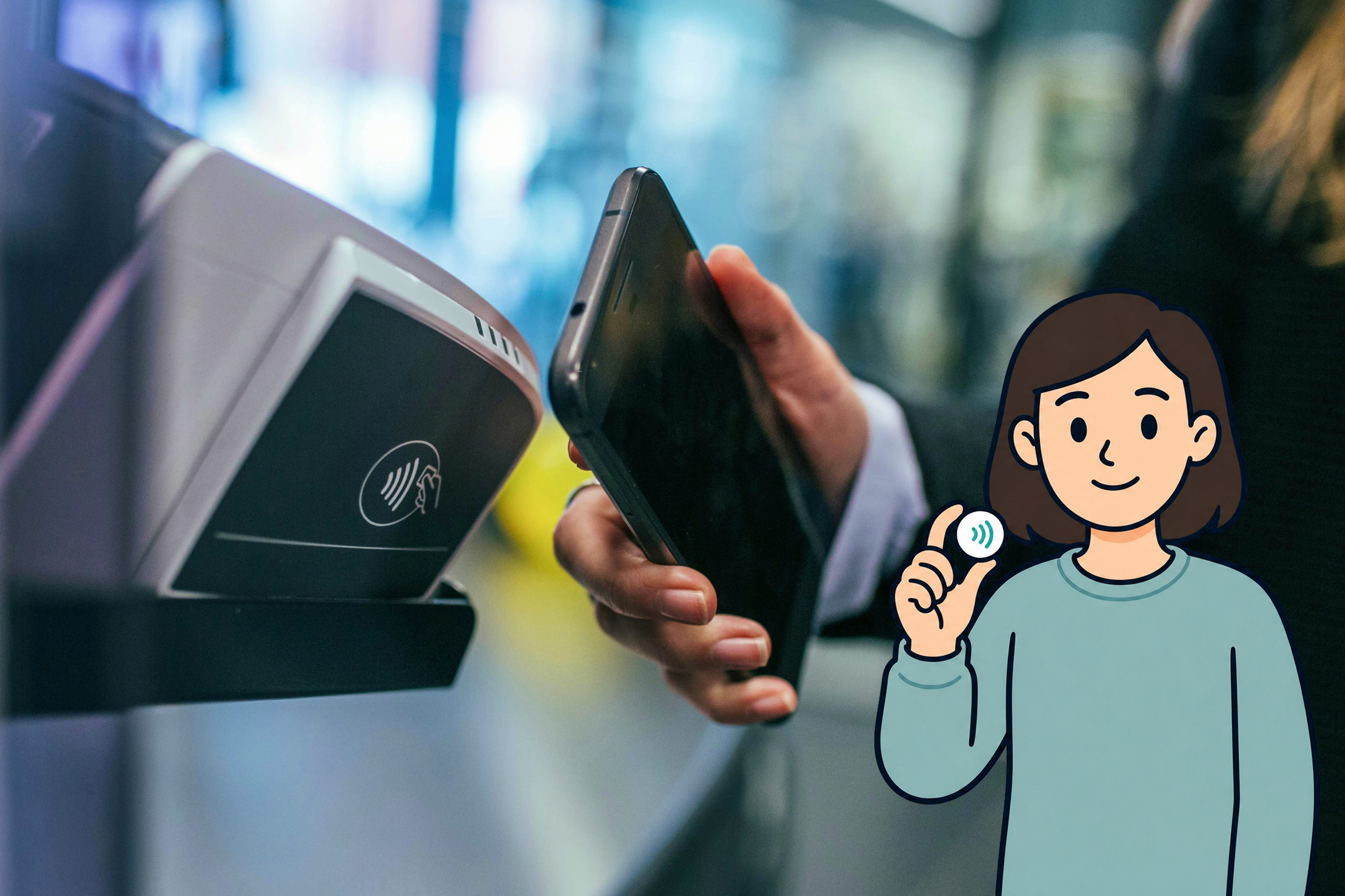
That sticker is an NFC tag. NFC stands for Near Field Communication. It’s a small programmable chip, similar to the one inside your credit card that gets detected by a card reader. They’re tiny, cheap, and they come as stickers about the size of a coin.
You tell the tag what to remember and what to do. It can store information or perform tasks. Then you stick it somewhere useful, and every time you tap your phone against it, it runs the whole thing.
What You Need
A phone with NFC Capability:
Most iPhones from the XR onwards and most Android phones from the last five years have NFC built in. You probably already have it.
NFC tags:
Blank, writable stickers, available online or at most electronics retailers. Look for NTAG215, they’re the most widely compatible type.
An app to program them:
On iPhone, you already have it: Shortcuts.
On Android, grab NFC Tools (free) or Tasker (paid, but can handle more once you’re comfortable building automations).
How to Set Up Your First NFC Tag
On iPhone (Using Shortcuts)
1. Open the Shortcuts app
It’s built into every iPhone. If you’ve never used it, it’s a white icon with overlapping coloured squares.
2. Go to the Automation tab
Tap Automation at the bottom of the screen, then tap the + button in the top-right corner.
3. Choose “NFC” as your trigger
Scroll down and tap NFC. Your phone will ask you to scan a tag. Hold the top of your phone against the NFC sticker. Give it a name (e.g., “Morning Routine” or “Front Door”).
4. Build your action
This is the fun part. Tap Add Action and choose what happens when you tap the tag. You can chain multiple actions together. Some ideas:
Open an app (e.g., medication tracker, checklist, timer)
Play a playlist (e.g., your favourite album that helps you focus)
Display a checklist on screen (e.g., a “Leaving the House” list)
Send a pre-written text (e.g., “On my way” to a partner or housemate)
5. Turn off “Ask Before Running”
This is important. Toggle off Ask Before Running so the automation fires instantly when you tap. No confirmation screen, no extra taps.
💡 Pro tip:
You can stack actions. A single tap could start a playlist, set a 20-minute timer, and turn on Do Not Disturb, all at once. Build the sequence once, then never think about it again.
iPhone users: Still not familiar with Shortcuts and automations? These articles will get you up to speed:
On Android (Using NFC Tools)
1. Download NFC Tools
It’s free on the Google Play Store. There’s also a Pro version, but the free one does everything you need to start.
2. Tap “Write” and scan your tag
Place the NFC sticker on a flat surface and hold the back of your phone against it. NFC Tools will detect and connect to the tag.
3. Add a record
Tap Add a record and choose what you want the tag to do. Common options:
Launch an app (e.g., a checklist in Google Keep or Notion)
Open a URL (e.g., a webpage or online checklist)
Display a text reminder (e.g., a quick prompt on screen)
4. Write to the tag
Tap Write and hold your phone to the sticker again. Done. The tag is now programmed.
💡 Pro tip:
If you use Samsung, check out Bixby Routines (or Modes and Routines on newer phones). It supports NFC triggers natively and is easier to set up than Tasker.
For more advanced automations on Android:
Use Tasker (around $5 AUD on the Play Store). Tasker lets you build multi-step routines triggered by NFC, similar to what Shortcuts does on iPhone. It has a steeper learning curve, but it’s incredibly powerful once you’ve got a couple of automations running.
Where to Put Them (And How to Make Them Stick)
NFC tags are small, flat stickers. Most come with adhesive backs. Here are the placements that work best:
Bedside table. Morning and bedtime routines.
By the front door. Leaving-the-house checklist.
On the fridge. Add to your shopping list every time something runs out.
On or near your desk. Focus mode activates.
On your water bottle. Hydration tracking.
Bathroom mirror. Skincare or hygiene routine prompt.
A few practical notes:
NFC tags work through most phone cases, so you don’t need to remove your case to tap.
They don’t need batteries or charging. Ever. They’re powered by your phone’s NFC signal.
If a tag stops working, it’s probably because it got wet or physically damaged. They’re cheap enough to replace.
Use different coloured tags or a permanent marker to label them so you know which is which.
Your phone needs to be within about 2–3 centimetres of the tag to register the tap. Hold it close.
On iPhone, the NFC reader is near the top of the phone, so tap with the top edge, not the centre.
Your iPhone needs to be unlocked for NFC automations to trigger. Older iPhones (before XS) don’t support background NFC scanning at all.
On some Android phones, NFC may need to be enabled in Settings before it will detect tags.
Why This Works for ADHD Brains
NFC tags aren’t a productivity gadget. They’re an accommodation for the stuff that trips us up most: task initiation, transition difficulties, working memory, and decision fatigue. Here’s why they work.
It’s a physical anchor
ADHD brains respond to external cues better than internal ones. Our brains need a stronger-than-average signal to shift from “not doing” to “doing.” A thought like “I should start getting ready” is often enough for neurotypical brains, but for us, the signal gets lost. The thought arrives, but the body doesn’t follow. A tag stuck to your bedside table is a physical, tangible trigger. Something you can see and touch. It doesn’t rely on you remembering, or on a notification you’ll swipe away.
It removes decisions
Every morning, our brains face dozens of micro-decisions before we've even left the house. What do I do first? Did I take my meds? Where’s my checklist? Each one drains a little more from a tank that’s already running low. An NFC tag replaces all of that with one action: tap. The decisions are already made. We made them once, when we set them up.
It lowers the initiation threshold
Task initiation is one of the hardest parts of living with ADHD. The space between “I should do this” and “I’m doing this” can feel enormous. And it’s not only starting from zero. Every transition, switching from one task to another, is its own initiation event. NFC tags shrink that gap to almost nothing. You don’t have to find the app, navigate to the right screen, and press start. You tap. That’s the whole thing.
It gives us a small hit of satisfaction
There’s something genuinely satisfying about tapping a tag and watching your phone spring into action. It’s quick, it’s tangible, and it gives us a micro-moment of “I did a thing.” For our dopamine-seeking brains, that little burst of reward at the very start of a task can be the difference between getting going and staying stuck.
“What If I Stop Using Them?”
You might. That’s fine.
ADHD brains cycle through systems. Something works brilliantly for three weeks, then fades into the background. That’s not failure. That’s how our brains work. Novelty wears off. Routines drift.
Here’s why NFC tags hold up better than most systems: they’re passive. They don't send us reminders we'll start ignoring. They don't guilt us with streaks. They're there when we need them and invisible when we don't. There’s no daily maintenance, no app to check, no notification to dismiss.
If you stop tapping the morning tag for a week, nothing happens. No streak broken. No data lost. And when you’re ready to use it again, it’s right there on your bedside table, waiting. No re-setup required.
That kind of forgiveness is exactly what makes a good ADHD accommodation. It works when you use it and doesn’t punish you when you don’t.
Where to Start
You don’t need a plan. Maybe it’s the front door. Maybe it’s the desk or the bedside table. Pick the one part of your day where you get stuck most, program a tag for it, and stick it where the delay happens. If it works, build from there. If not, reprogram it and try something else.
Resources
Want to dig deeper into how NFC works on your phone? Here are some good starting points:
iPhone
Android
Designing Cognitive Accessibility Systems
We're putting together a course on using everyday tech as ADHD accommodation. It's the kind of thing we write about here, but structured so you can actually set it all up and make it stick.
It’s still in development, and we’re figuring out the format based on what people actually want. If you’re interested, let us know.
Register your interest at muddlemend.com
MuddleMend | ADHD Accommodations for Work and Life
Using tech to work with your brain, not against it.
Browse all guides • Read more articles • Website
© 2026 MuddleMend
I love this idea! I'm going to have fun trying to figure out how to incorporate this...
Such an interesting use. First I'm hearing about NFC tags, and I love the creativity in applying it to the ADHD brain.